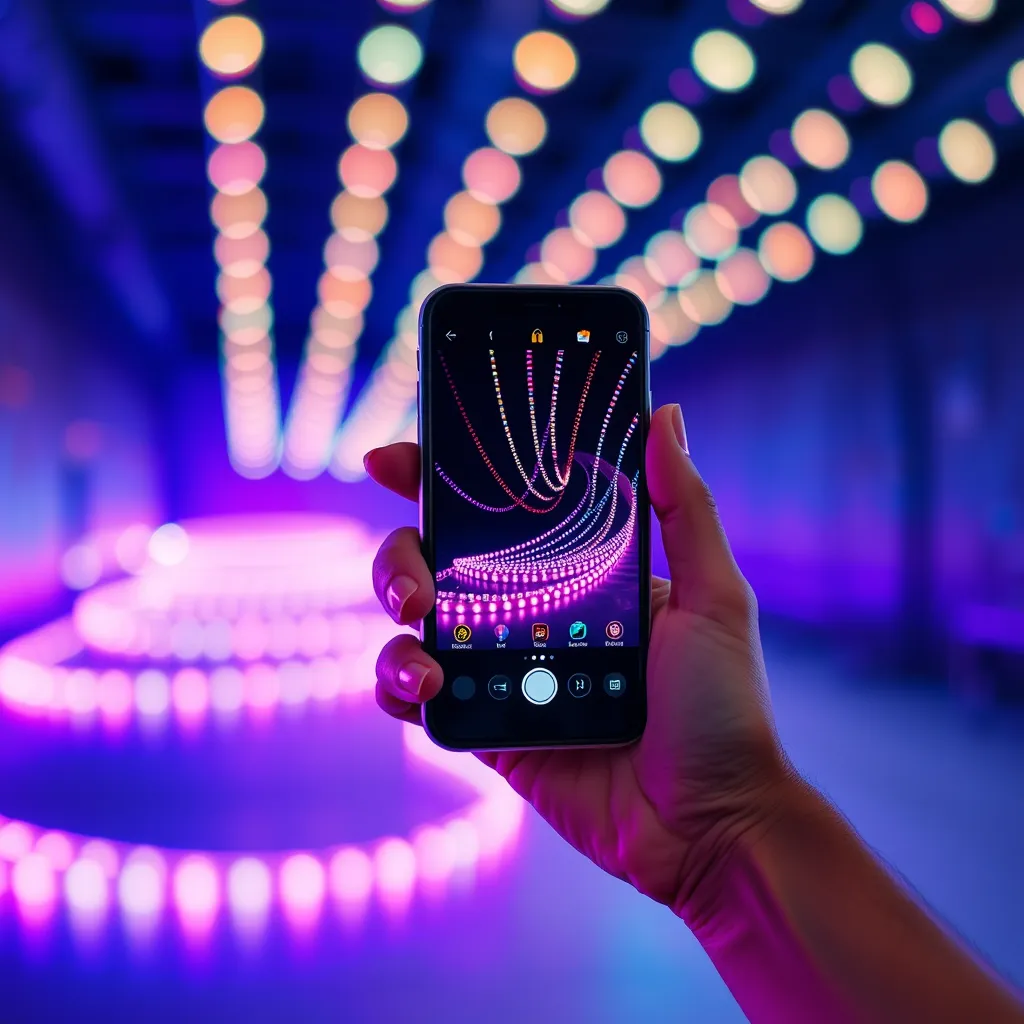
Getting your LED lights on your phone is a two-minute job, but one small setting stops more people than any other step. Nail it and you control color, brightness, and scenes from the couch or from across the country.
To connect, download the brand's app (Govee, Philips Hue, LIFX, Magic Home), power on the lights, and follow the pairing prompts. Most connect by Bluetooth (instant, within 30 feet) or Wi-Fi (control from anywhere). Setup takes 2 to 5 minutes.
Bluetooth or Wi-Fi? That Choice Decides Everything:
Bluetooth pairs instantly but only works within about 30 feet. Wi-Fi lets you control lights from anywhere and adds Alexa and Google voice control. If you want remote or voice control, you need Wi-Fi, and that brings the one gotcha below.
How to Pair LED Lights With Your Phone: 4 Steps
Download the right app. Find your brand's app (Govee Home, Philips Hue, LIFX, Magic Home Pro, Tuya, Smart Life). The name is on the box or instruction sheet.
Make an account if asked. Govee and Hue need one for cloud and voice features. Some Magic Home versions skip it for basic Bluetooth.
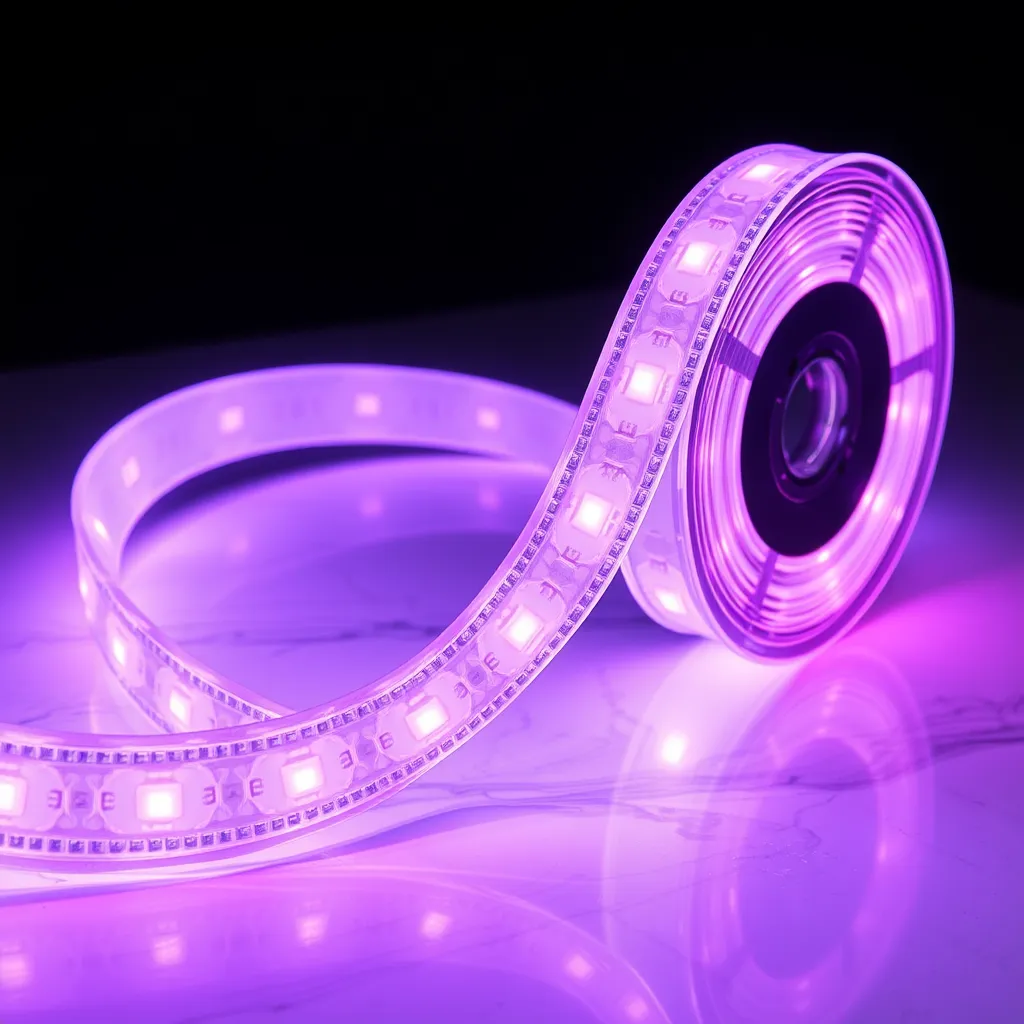
Power on the lights. Plug in a strip or flip the switch for a bulb. New lights usually flash or cycle colors to show they are ready to pair.
Pair in the app. Tap "Add Device" or "+", pick your model, and select the light when it appears. For Wi-Fi, enter your network name and password.
If the lights do not flash on first power-up, power cycle them 3 to 5 times quickly to force pairing mode.
Setup Notes by Brand:
Brand | App | Connection | Note |
|---|---|---|---|
Govee | Govee Home | Bluetooth + Wi-Fi | Bluetooth local, Wi-Fi for remote and voice |
Philips Hue | Philips Hue | Zigbee (Hue Bridge) | Needs a Hue Bridge (~$50) on your router |
LIFX | LIFX | Wi-Fi | No hub, connects straight to Wi-Fi |
Wyze | Wyze | Wi-Fi | 2.4GHz only, no 5GHz |
Magic Home chip | Magic Home / Smart Life | Wi-Fi | 2.4GHz only, EZ or AP mode |
The Wi-Fi Setting That Trips Everyone Up:
This is the fix for most "won't connect" problems. Nearly all smart LEDs only join 2.4GHz Wi-Fi, not 5GHz.
If your router broadcasts one combined network, the light often fails to connect. Temporarily turn off the 5GHz band during setup, or make a separate 2.4GHz network name.
Once the light is on the 2.4GHz network, switch 5GHz back on for your other devices. This one step solves the majority of pairing failures.
Other Reasons It Won't Connect:
Bluetooth range. Move your phone within 10 feet. Walls and metal block the signal, and Bluetooth must be on in phone settings, not just the app.
Android location. Some Android phones need location services on for Bluetooth scanning to work.
Not in pairing mode. Power cycle (off, 10 seconds, on). If still hidden, factory reset by toggling power 3 to 5 times until it flashes.
If resets are new to you, our guide on how to reset LED lights walks through it by brand.
Conclusion:
Connecting LED lights to your phone is quick: install the app, power on, and pair. Choose Wi-Fi for remote or voice control, Bluetooth for simple local control.
If pairing stalls, check the 2.4GHz setting first, that fixes it most of the time. For the physical side, see how to set up LED strip lights.
(FAQs):
Q1. Can I control LED lights from anywhere, or only at home?
A: Bluetooth lights only work within about 30 feet. Wi-Fi lights work from anywhere, as long as the lights are powered and your home internet is up.
Q2. Can I connect LED lights to Alexa or Google Home?
A: Yes, if they are Wi-Fi. Link the brand's skill in the Alexa or Google Home app, then use voice commands. Bluetooth-only lights usually cannot, since they need a cloud connection.
Q3. Do I need a separate hub or bridge?
A: Usually no. Most Wi-Fi and Bluetooth lights connect directly. The main exception is Philips Hue, which needs a Hue Bridge (~$50) on your router.
Q4. Why does my LED strip connect but keep dropping off?
A: Usually a weak 2.4GHz signal or a full 2.4GHz band. Move the router closer, or reduce crowding on that band. For wiring issues, see how to connect LED strip lights.